The process, in a nutshell
A quick overview of the procedure is as follows – and this page presumes you’ve written a live, Linux installer to a thumb drive:
- Connect an external device (a blank drive on which your external, bootable OS will reside)
- Boot from a live, Linux USB
- Create a 512 meg, FAT32, EFI partition on the external drive either using Gparted,or, the installer. With Gparted you need to add the boot flag and the esp flag (added automatically when choosing the boot flag) using the “manage flags” menu. I believe the installer gives you the option to create an EFI partition without having to fool with the flags.
- Install the system on the external drive as you would normally – the grub menu will be updated to give you the option to boot the local drive or the external drive.
A few notes, caveats, etc.
- An operating system connected via USB is going to be somewhat sluggish – therefore, an SSD is absolutely preferable.
- Bit of a random note: When opening the Chrome browser for the first time in this kind of setup you’ll wait on oddly long amount of time for the browser to open. Why? I have no idea. After it’s first run this issue disappears. This may be the case for any browser – I don’t know.
- I had one, single, 128-gig SSD laying around and for some reason the filesystem kept becoming corrupted after a few boots (using that drive). Therefore I learned the following……
- An SSD is not mandatory. I’m editing this page running from a system installed on a standard, old SATA drive in an external bay. Obviously, for best performance use an SSD.
- This setup can be extended to make an external drive bootable from more than just your local PC.
- Regarding the above: booting an external drive from a very under-powered laptop resuluted in a horribly corruped filesystem (once) – explanation further down this page……
- A light duty distro on an external drive, in my opinion, makes the most sense. You might even choose to use an older version of a distro to lighten the load – remember, a connection via USB is not nearly as efficient as an internally connected drive.
Extending the concept: Make the external drive bootable from any computer
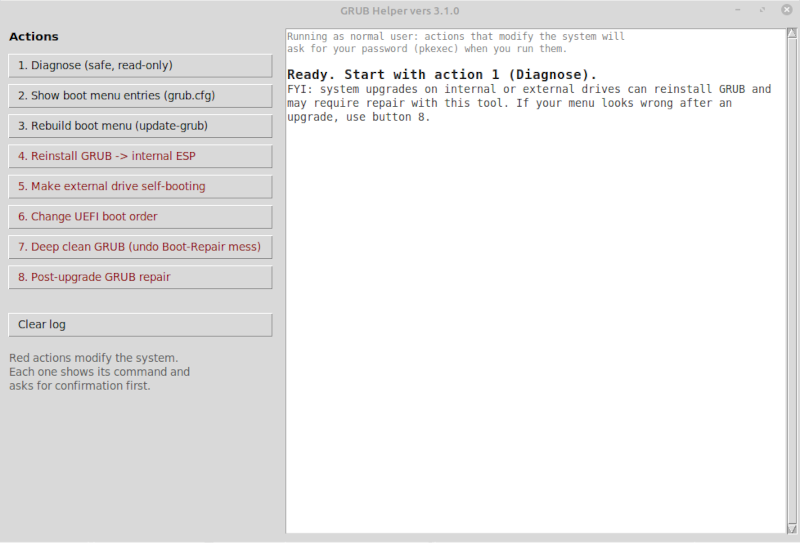
Okay. This is something not covered in the video on this page. Basically getting this to work is simply a matter of installing a modified grub loader to the external drive. The entire process is not wildly complicated, but, it’s a bit complicated. To eliminate a lot of command line horsing around I developed a tool which works on Debian-based systems which makes the whole process point-and-click.

One warning, here, based upon a personal experience. I had Linux installed on an external drive and plugged into a very, very old and under-powered laptop (circa 2015, four gig of RAM, Celeron processor – an economy Acer that wasn’t very good even in it’s day). It booted up and ran fine a couple of times. But it booted very slowly and, of course, as it booted it had to work to find drivers and configure itself for this different – and very old – computer. After doing this a few times the filesystem became hopelessly corrupt. I never recovered some files. I did stop e2fsck mid-process a few times which probably did not help. But I would only connect a drive, of this kind, to a system with decent specs.
For Debian Based Linux – My ‘Grub-helper’ Tool